
Introduction
A smartphone that refuses to charge can be frustrating, especially when you rely on it for work, communication, or entertainment. In many cases, charging problems are caused by simple issues such as a faulty cable, a dirty charging port, software glitches, or incorrect charging habits. Fortunately, you can often fix these problems yourself without visiting a repair shop.
This guide explains the most common reasons why a smartphone won’t charge and provides step-by-step solutions for both Android and iPhone users.
Common Reasons Why Your Phone Won’t Charge
Before trying any repairs, it’s helpful to understand what might be causing the problem.
Some common causes include:
- Damaged charging cable
- Faulty power adapter
- Dirty charging port
- Software glitches
- Battery health issues
- Overheating
- Water damage
- Worn-out charging port
Finding the actual cause makes troubleshooting much easier.
Step 1: Check the Charging Cable
The charging cable is often the first thing to inspect.
Look for:
- Frayed wires
- Bent connectors
- Loose connections
- Visible damage
Try charging your phone with another compatible cable. If the new cable works, replace the damaged one.
Step 2: Inspect the Power Adapter
Sometimes the charger itself is the problem.
Try:
- Using another wall adapter.
- Charging from a different power outlet.
- Connecting the charger to another phone.
If the adapter fails to charge multiple devices, it likely needs replacement.
Step 3: Clean the Charging Port
Dust, lint, and debris can block the charging connector.
To clean the port:
- Turn off your phone.
- Use a soft brush or a wooden toothpick.
- Remove visible dust carefully.
- Avoid using metal objects.
Cleaning the charging port often restores proper charging.
Step 4: Restart Your Phone
Temporary software bugs may prevent charging from working correctly.
Simply:
- Restart your smartphone.
- Plug the charger in again.
- Wait several minutes.
A restart refreshes the operating system and can solve minor issues.
Step 5: Try a Different Power Source
The problem may not be your phone at all.
Test charging from:
- A wall outlet
- A laptop USB port
- A power bank
- A certified wireless charger (if supported)
If one method works and another doesn’t, the issue is likely with the power source.
Step 6: Check for Overheating
Modern smartphones automatically stop charging if they become too hot.
If your device feels warm:
- Remove the case.
- Move it to a cool location.
- Avoid direct sunlight.
- Wait until it reaches a normal temperature.
Once it cools down, try charging again.
Step 7: Update Your Software
Software updates often fix charging-related bugs.
Check for updates by going to:
- Settings
- Software Update
- Download and Install
Installing the latest version of your operating system can improve charging performance.
Step 8: Check Battery Health
Over time, smartphone batteries naturally wear out.
Signs of battery wear include:
- Rapid battery drain
- Unexpected shutdowns
- Slow charging
- Battery percentage changing suddenly
If your battery is significantly degraded, it may need professional replacement.
Step 9: Remove Problematic Accessories
Some third-party accessories may interfere with charging.
Temporarily remove:
- Thick phone cases
- Magnetic accessories
- Damaged charging docks
Then reconnect your charger to see if the problem is resolved.
Step 10: Test Wireless Charging
If your phone supports wireless charging:
- Place it correctly on a compatible wireless charger.
- Remove thick cases or metal accessories.
- Ensure the charger is connected properly.
If wireless charging works but cable charging doesn’t, the charging port may be damaged.
Step 11: Check for Moisture Warnings
Many smartphones detect moisture inside the charging port.
If you see a moisture warning:
- Disconnect the charger immediately.
- Let the phone dry naturally.
- Keep it in a dry, well-ventilated area.
- Do not use heat to dry the device.
Charging should resume once the moisture has evaporated.
Step 12: Avoid Cheap Charging Accessories
Low-quality chargers may provide unstable power and even damage your device.
Always use:
- Certified charging cables
- Reliable power adapters
- Trusted accessories from reputable brands
Quality accessories help protect both your battery and charging port.
Step 13: Monitor Charging Speed
If your phone charges very slowly:
Check whether:
- Fast charging is enabled (if supported).
- The charger supports the required power output.
- Background apps are consuming excessive power.
Closing demanding apps while charging can improve charging speed.
Step 14: Reset Device Settings
If charging issues continue after software updates, resetting device settings may help.
This restores system settings without deleting your personal files.
After resetting:
- Restart your phone.
- Connect the charger again.
- Check if charging has improved.
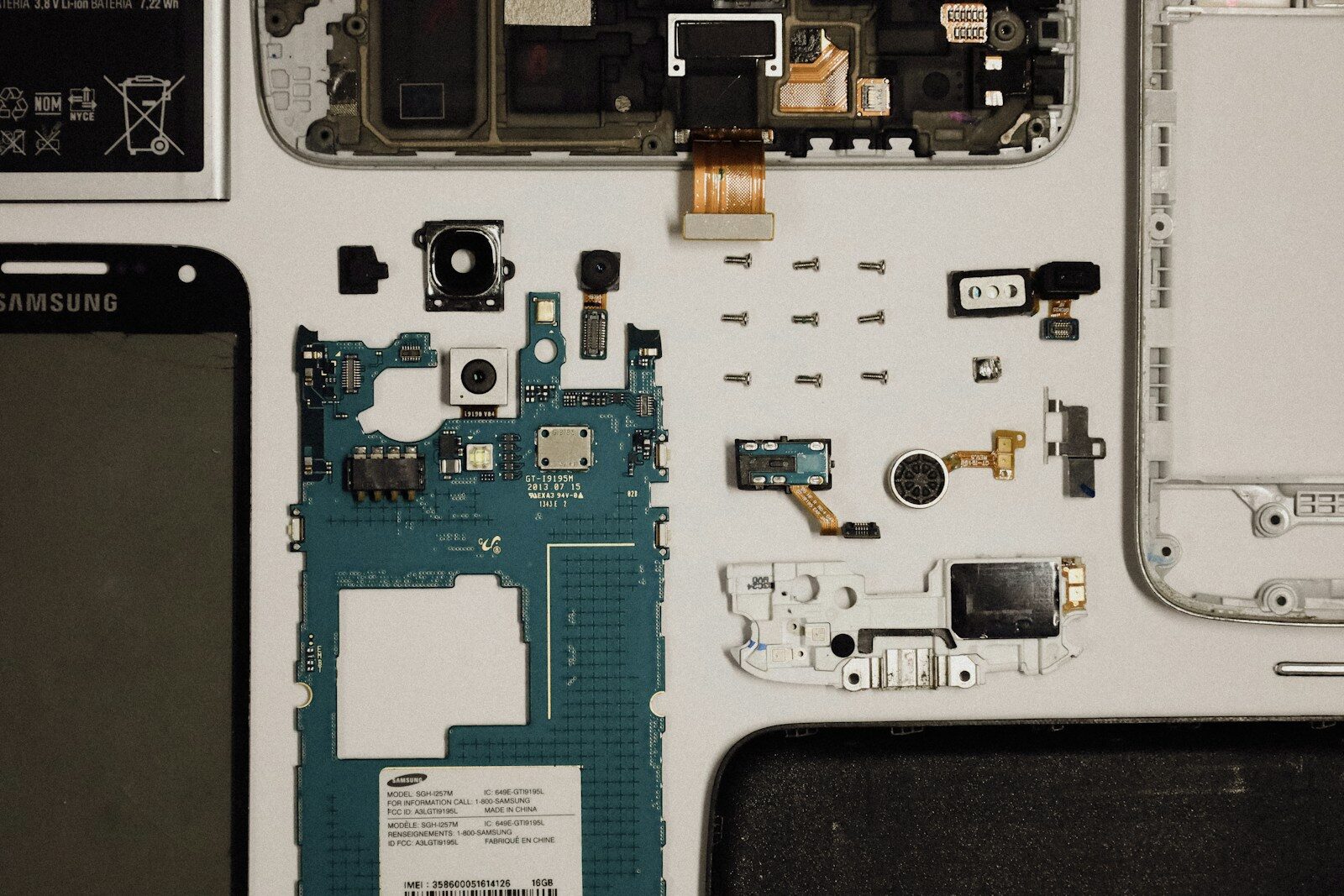
Step 15: Seek Professional Repair
If none of the troubleshooting steps work, professional assistance may be required.
Possible hardware problems include:
- Damaged charging port
- Faulty battery
- Internal circuit failure
- Water damage
- Motherboard issues
Avoid attempting complex internal repairs yourself unless you have the necessary experience.
Tips to Prevent Charging Problems
Following good charging habits can reduce future issues.
Helpful tips include:
- Keep the charging port clean.
- Avoid bending charging cables.
- Use certified chargers.
- Don’t expose your phone to extreme heat.
- Unplug the charger carefully.
- Keep your software updated.
- Charge your phone before the battery becomes completely empty.
Proper care extends both battery life and charging reliability.
Conclusion
Charging problems don’t always mean your smartphone is permanently damaged. In many cases, the issue can be solved by checking the charging cable, cleaning the charging port, updating the software, or trying another power source. By following the troubleshooting steps in this guide and practicing good charging habits, you can keep your smartphone powered, protect its battery, and avoid unnecessary repair costs. If the problem persists after trying these solutions, professional service may be the safest option.